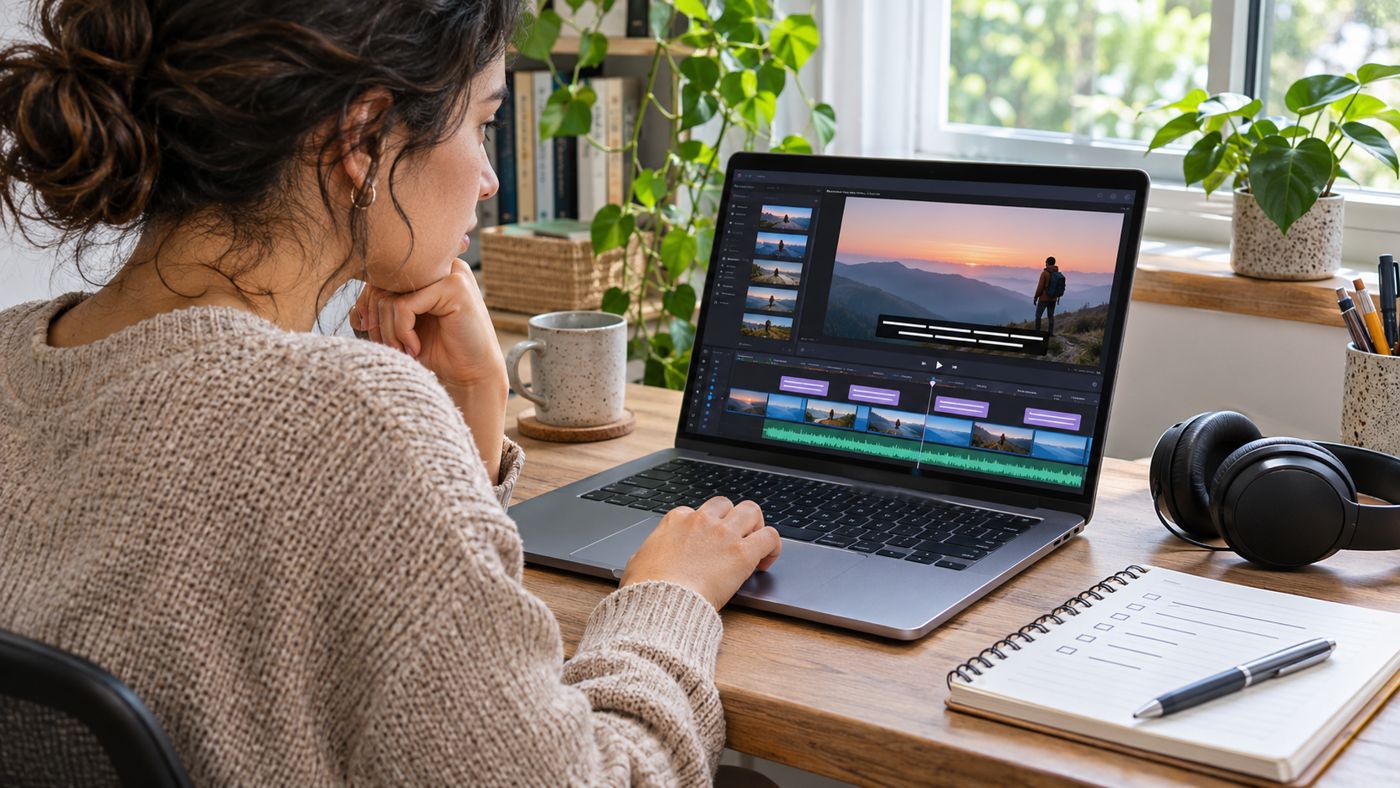
A viewer opens a video on a quiet train. Another turns the sound off at home. A deaf viewer needs the words on screen. Clear captions help each person follow the story.
YouTube can make captions for many videos. The words still need a human check. Names, sounds and timing can all go wrong. A short review before release can help.
Captions do more than show speech
A good caption track shows the right words at the right time. It can also identify a speaker or describe an important sound when that helps make sense of a scene.
Think of a door slamming while the person on screen looks away. If that sound changes what happens next, a brief sound cue may matter. A song, a laugh or a voice off screen can matter too.
Keep the words easy to read. Avoid leaving a full paragraph on screen for a second. A viewer should have time to read the text and still see what is happening in the picture.
Start with the best sound you can
Captions are easier to check when the original sound is clear. Record in a quiet place if you can. Keep the microphone close enough to hear the speaker and test it before the main take.
You do not need a costly studio to improve sound. Turn off a loud fan when it is safe to do so, close a door and record a short test. Listen through headphones before you begin.
A simple pair of wired headphones can help you hear a rough cut. As an Amazon Associate, we may earn from qualifying purchases. Choose gear that fits your setup and budget.
Check the automatic track
YouTube’s automatic caption guide explains why the text can contain mistakes. A clear voice helps. Noise and names can still trip up the system. So can people who speak at once.
In YouTube Studio, find the video and its subtitle tools. Open the caption track and read it. Controls can change. Use the help page if the screen looks different.
Read along while you play the video. Fix names, places, numbers and words that change the meaning. Do not assume the system will get a plant name, a product model or a local place right.
Check the timing as well. A line that arrives too early can spoil a joke or make a speaker hard to follow. A line that stays too long can cover the next point. Watch the full cut, not just the first minute.
Think about the whole screen
Keep key text clear of player controls and captions. Do not use colour alone to explain a chart. If a detail on screen is vital, say it aloud. Explain it in text if that best fits the scene.
For tall videos, leave space around the edges. Apps put buttons in different spots. Check the final cut on a phone and a large screen.
On a phone, small text can be hard to read. Keep each line short and give it enough time on screen. Test the cut at the size your viewers will use. A good line should not rush past before a person can read it.
If a face or a key sign is at the foot of the frame, check that the text does not hide it. Move the text if your tools allow it. Then watch the scene again.
The video below shows how to add and edit captions. Menus may look different now. Use the current help guide for exact steps.
A quick review before release
Play the whole video with captions on. Then play part with the sound off. Does the text give enough context? Check that each speaker can be followed and that lines do not hide key text.
Ask someone else to review it when you can. A creator knows what was meant and may read a wrong word without noticing. A fresh reader can spot a name, gap or timing issue quickly.
If you make a new cut, check the caption track. Does it still match? A few added seconds at the start can put every line out of time.
Watch for words that sound alike but mean different things. A caption can be spelled correctly and still be the wrong word. Check names against your notes, and listen again where the text seems odd.
If two people speak at once, make it clear who says what where you can. Do not cover a key name or label with the text. Leave each line up long enough to read at a calm pace.
A short test with a friend can show what you missed. Ask them where they had to pause. Ask if they could tell who was speaking. Fix the spots that caused doubt, then play that section again.
Do not erase useful sound cues just to make the track shorter. A knock or an alarm may tell the viewer why someone reacts. Keep the cue brief and place it when the sound happens.
Keep the source files
Save your final video, caption file and any transcript with your project. Give each file a clear name and date. Keep a backup in a second place so one lost drive does not take the whole project with it.
Our guide to saving video originals, captions and rights shows how to keep those files in one place.
If a caption file is shared with a client or teammate, agree on which copy is final. Keep a short note of the language and the cut it belongs to. That avoids a lot of guesswork months later.
Make a habit of it
Captions are part of the show. Plan for them before you upload. A clean script, clear sound and a final read can save time on the next project.
For a sign-in check, CatchWMW’s guide to account recovery can help if you use a phone to sign in.
Our article on YouTube’s AI editing tools looks at more tools to try. The final check still belongs to the person who made the video.